
Search for a PNG to JPG converter with no watermark and the results split into two kinds of bad bargain: converters that upload your photo to a server before they will touch it, and converters that do the job and stamp their name on the output. For a still image conversion, a watermark should never be part of the deal. Neither should an upload. PicConvert, the free converter built for this site, does the whole conversion inside your browser tab. The file never leaves your device, the output carries no watermark, and there is no account to create before the first conversion.
The test: a 3.36 MB PNG became a 389.2 KB JPG
Here is an actual run instead of a promise. The test file is a photo-style PNG at 1600x1200 pixels with transparent edges, 3.36 MB on disk (3,520,095 bytes). It went into PicConvert with the output format set to JPG, the quality left on the app default of 82, and the width left at Original size. The JPG that came out weighs 389.2 KB at the same 1600x1200 size: 89 percent smaller, and the downloaded file checks out clean. There is no overlay, no logo in the corner and no embedded credit line, just the picture, exported by the browser's own Canvas API with nothing uploaded at any point.
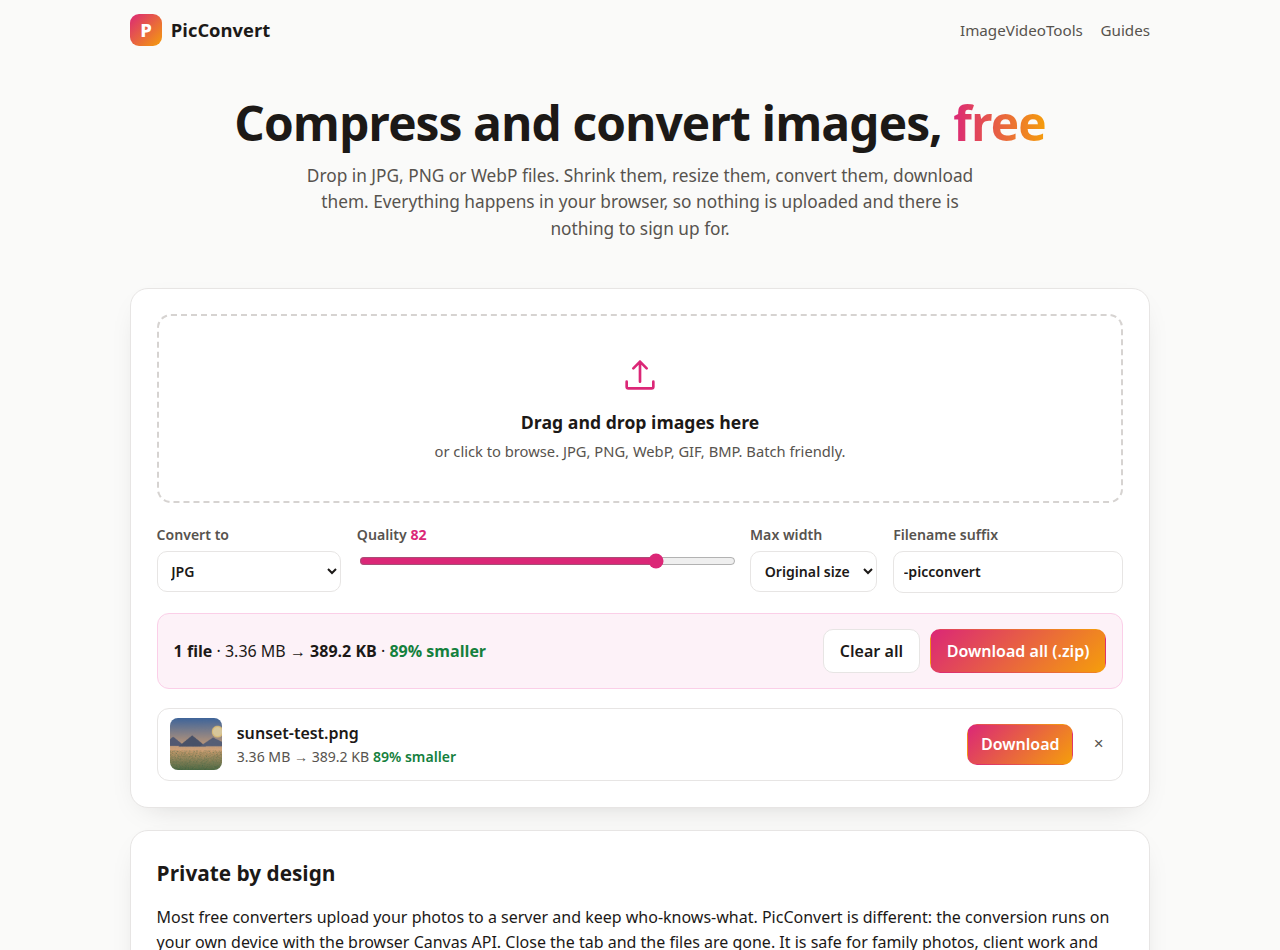
The 89 percent is not a trick of an easy test file. PNG is lossless, so a photo-style image full of fine detail is exactly where PNG is heaviest and JPG earns its keep. PicConvert's own FAQ puts typical phone photos at 60 to 85 percent smaller at the default quality; a detailed PNG lands past the top of that range.
What happens to the transparent parts
JPG has no alpha channel, so every converter has to decide what to do with the clear parts of a PNG. PicConvert fills them with white before it exports, and on the test file the transparent edges became a plain white frame; the corner pixels of the JPG are pure white. White is the right answer surprisingly often: application forms, ID portals and marketplaces that insist on JPG almost always show the image on a white page, and white is the standard background for product photos.
When the transparency is the point, a logo built to sit on any background or an overlay graphic, do not convert to JPG at all. Keep the PNG, or run the PNG to WebP conversion instead: WebP keeps the alpha channel and still shrinks the file, and that companion post shows the conversion with its own measured numbers.
How to convert PNG to JPG in PicConvert
- Add images. Open PicConvert and drag your PNG files onto the page, or click the drop area to browse. A whole folder's worth can go in at once; batch processing is built in.
- Pick the output. Set Convert to: JPG. Leave Quality on 82 unless you have a reason to move it: higher for print, lower for thumbnails.
- Set a max width if you need one. The presets are 3840, 1920, 1280, 800 and 480 pixels. Original size keeps every pixel.
- Download. Save each JPG on its own, or press Download all to take the whole batch as one zip.
For a still image conversion, a watermark should never be part of the deal.
When JPG is the right call, and when it is not
JPG is the right call when the destination demands it or the file is a photo: email attachments that bounce at size limits, forms and portals that accept JPG and nothing else, marketplace listings, and CMS uploads where a 3 MB PNG would slow the page down for every visitor. It is the wrong call for screenshots full of small text, line art and logos, where JPG compression softens edges that PNG keeps exact, and for anything that needs its transparency, as covered above.
The honest limits
Three limits, stated plainly. Downloads first: the first two downloads per IP address each day are free, and after that an email address unlocks unlimited downloads for the rest of the day. Converting itself is never gated, and your files stay on your device either way. Formats second: PicConvert opens JPG, PNG, WebP, GIF, BMP and most other images a browser can read, and it exports JPG, PNG or WebP only, so there is no TIFF or HEIC output. Quality third: JPG is lossy by design. At 82 a photo looks the same to the eye, but the data thrown away is gone, so keep the original PNG as your master copy.
Why no watermark is even a question
The words "no watermark" are in this search because watermarking is the standard tax on free creative tools. It is worst in video: the most-read guide on this site compares free video editing software with no watermark precisely because so many free editors stamp their exports until you pay. That guide is the video answer; this page is the image answer. For images the bargain makes even less sense, because conversion is a solved problem that a browser can do by itself, so the upload and the watermark buy the visitor nothing.
If what you actually need is editing software rather than a conversion, start from the ImageVideoTools homepage, where the comparisons cover more than 100 image and video editors on facts, not ads. If all you need is the conversion, it is one drop away: PNG in, JPG out, no watermark, nothing uploaded.