
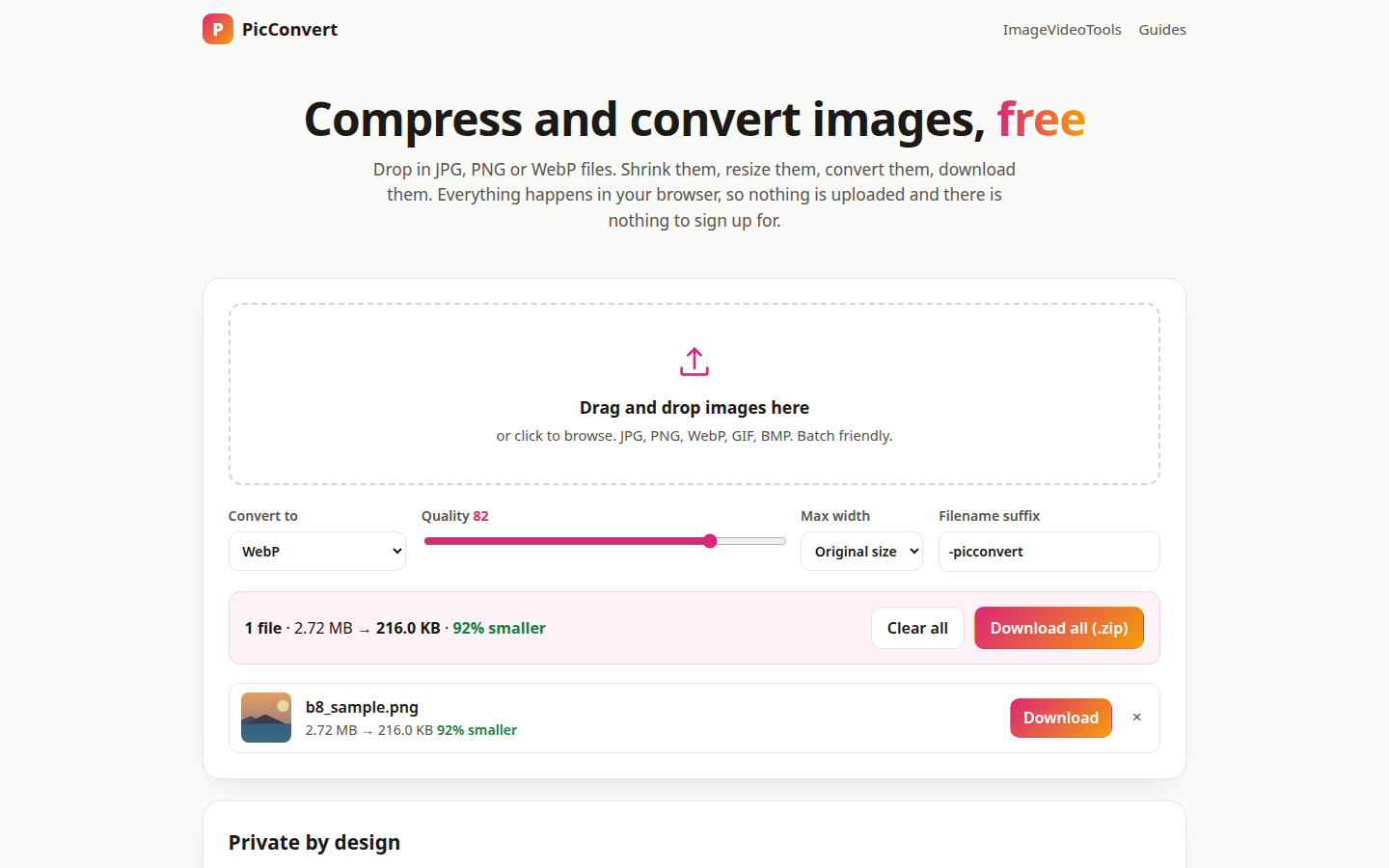
Here is the exact task, run once in the free PicConvert: one PNG photo, 1600 by 1200, weighing 2.72 MB. Output set to WebP, quality left at the default 82, width untouched. The result panel answered in one line: 2.72 MB became 216.0 KB, 92 percent smaller, processed on the device with nothing uploaded. The tool's own tip says the same thing in general terms: photos to WebP at quality 82 usually lose two thirds or more of their size with no visible difference. This run beat the tip.
1. Website and blog images
The run above is the website case. A 2.72 MB hero image is a slow page; a 216 KB WebP is not. Convert first, upload second, and keep the PNG master on your disk. Our software comparison guide covers the editors you would open for anything heavier.
2. Email and form uploads with size caps
Application portals, support desks and email attachments all have quiet size limits. A WebP or a quality-82 JPG at a 1280 px max width walks under almost all of them, and the size readout tells you the number before you hit send.
3. A whole folder before a CMS upload
Batch is the point most converters bury. Drop the folder in, set format, quality and the filename suffix once, and download the zip. The suffix (the default is -picconvert) means converted files sit next to the originals without overwriting them.
4. Screenshots for docs and bug reports
PNG screenshots are crisp and huge. Converting the set to WebP at 1280 px wide keeps text readable and documentation pages light. If the screenshot is headed for a thumbnail instead, the Thumbnail Canvas on our sister site builds the full 1280x720 frame.
5. Photos you should not upload anywhere
Client work under NDA, family photos, ID scans for a landlord. The conversion runs on your device with the browser Canvas API, and the page says it plainly: close the tab and the files are gone. That is the whole privacy policy, and it is a good one.
6. Story and reel stills
A frame pulled from a video is usually a fat PNG. Shrink it here, then frame it for a story with the Story Frame Maker, or spin a product shot with the Turntable GIF Maker. New to the tool? The short explainer walks the four steps first, then come back and run your heaviest photo through the PicConvert.